
The Commodore 128 is the only mass-market home computer of its era to ship with two complete operating systems built in: the familiar C64/C128 BASIC environment driven by the 8502 CPU, and CP/M Plus (3.0) running on the onboard Zilog Z80 at 4 MHz. That second operating system — Digital Research's industry-standard OS for 8-bit business computing — transforms the C128 into something closer to a Z80 workstation than a games machine. CP/M on the C128 can run a vast library of professional software, from WordStar to dBASE II, but it does so in an 80-column text mode that has a significant blind spot: the Ultimate II+ cartridge menu is completely inaccessible from within CP/M. CPMUTools solves this with three utilities that bring UII+ disk management, time synchronisation, and configuration into the CP/M environment itself.
z88dk and UCI Protocol
The tools are compiled with z88dk, a mature C cross-compiler targeting Z80 architectures including C128 CP/M, and communicate with the UII+ hardware through Scott Hutter's Ultimate II+ library adapted for the Z80 environment. The hardware interaction is the same UCI (Ultimate Command Interface) protocol used in the GEOS and BASIC-side tools — a command interface exposed by the UII+ cartridge that the host CPU accesses through memory-mapped registers, giving direct control over USB filesystem browsing, disk image mounting, drive emulation settings, and the real-time clock. From CP/M, this means you can swap virtual disks, sync the system clock, and configure the cartridge without ever rebooting to the C64 side.
CPM UMount
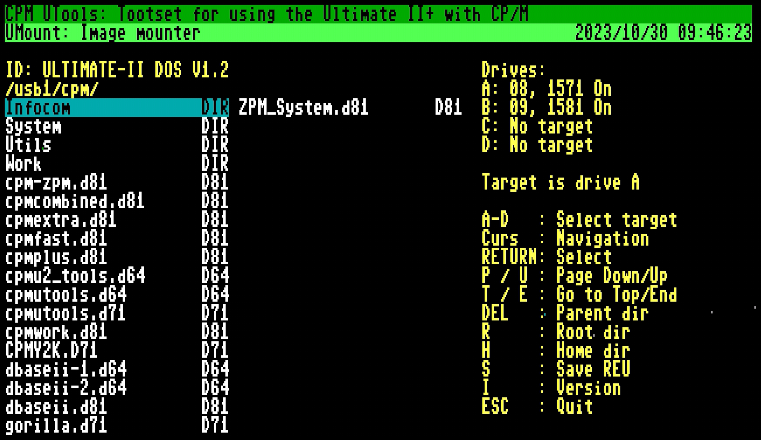
CPM UMount presents a text-mode file browser that navigates the UII+ USB filesystem and filters the directory listing to show only subdirectories and valid disk image types: .D64 (for 1541 or 1571 emulation), .G64 (1541/1571), .D71 (1571), and .D81 (1581). Other files are hidden, keeping the browser focused and the listing short even on large USB drives.
The drive target panel on the right shows detected CP/M drives A through D with their UII+ emulation type. Pressing A, B, C, or D switches which drive will receive the next mount. Pressing RETURN on a highlighted image mounts it to the active target, displays a success dialogue, and returns to the browser. Press ESC to exit back to the CP/M prompt with the new image live and ready to use.
Firmware 3.10f and newer supports automatic drive detection based on software IDs. Older firmware uses hardware IDs, which can drift from what CP/M assigns — if detection produces incorrect results, the manual override in UConfig corrects this.
The S key saves the current REU memory contents to a .reu file in the active directory. You choose the filename, confirm if an existing file would be overwritten, then select the size to save using + and - before confirming. Depending on size this can take a while.


CPM UTime
CPM UTime sets both the UII+ real-time clock and the CP/M system time from an NTP server. CP/M's time-stamping system depends on an accurate system clock for reliable file modification records, and the C128's RTC drifts without correction — UTime solves this by fetching the UNIX epoch over the UII+'s Ethernet interface, applying the configured UTC offset (entered in seconds for sub-hour time zone support), and pushing the corrected time to both the hardware RTC and the running CP/M clock in a single operation.
Verbose mode shows each step of the NTP exchange for debugging: connecting to the NTP host, sending the request, receiving the response, converting the epoch to local time, setting the UII+ RTC, and syncing CP/M's clock. If the NTP request fails, the CP/M clock is still synced to the unchanged RTC as a fallback.

CPM UConfig
CPM UConfig provides a cursor-key-navigated configuration interface for both UMount and UTime. Navigate the options with CURSOR UP and DOWN; press RETURN to edit the highlighted option; press ESC to save and quit.
Settings include: NTP server hostname, UTC offset in seconds, NTP enable/disable toggle, verbose mode toggle, detection override toggle, per-drive validity (A–D), and default target drive. All settings are saved to CPMUTOOL.CFG on the current disk and read automatically by UMount and UTime at startup.

Requirements and Download
CPMUTools requires an Ultimate II, II+, or II+L cartridge with the Command Interface enabled. UltiDOS Allow SetDate must also be enabled for UTime to update the Real Time Clock. The suite ships as both a .D64 and a .D71 CP/M formatted disk image — use the .D71 if your firmware supports it, as the emulated 1571 is significantly faster than the emulated 1541. Launch UMOUNT, UTIME, or UCONFIG by typing the filename at the CP/M prompt. Everything is at https://github.com/xahmol/CPMUTools.