
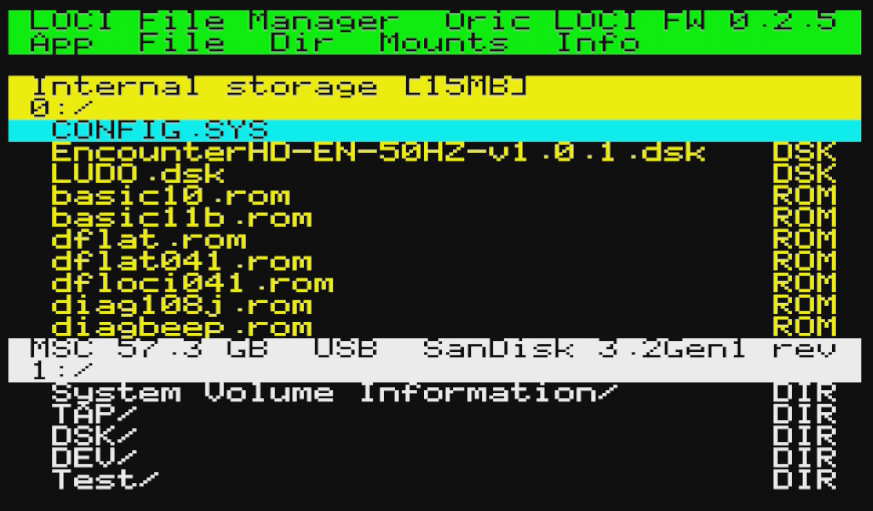
The Oric Atmos is a 6502-powered British microcomputer from 1984 that has sustained a passionate owner community long past its commercial lifespan. What it has never had, until now, is a proper file manager for the LOCI mass storage device — the modern SD/USB storage accessory that brings gigabyte capacity and fast file access to Oric hardware. The LOCI File Manager fills that gap completely, delivering a dual-pane, menu-driven file management application that makes organising your LOCI storage as intuitive as any vintage file manager you have used on a more famous platform.

Dual-Pane File Management
The application architecture centres on a two-pane browser where each pane shows an independent directory from any LOCI-provided drive — internal storage (drive 0) or any of up to nine USB mass storage devices (drives 1–9). The active pane is highlighted in yellow, the inactive pane in white. Switching panes with the / key keeps both locations visible simultaneously, which is exactly what you need when copying files between drives: navigate to the source in one pane, switch to the destination in the other, and press C to copy.
The copy routine handles multi-file selections: press S to toggle individual files, A to select all, N to deselect all, and I to invert the selection. A real-time progress popup shows transfer status. Pressing ESC mid-copy cancels after the current file finishes. For move operations (added in v0.1.2), press V instead of C to copy-and-delete in one step.
File Operations
The file manager covers the full range of operations you would expect. Delete (DEL key) removes a file or empty directory, with a configurable confirmation prompt. Rename (R) opens an in-place editor for the name. New directory (E) creates a new folder in the active pane's current path. All of these work on individual files or on a multi-file selection, with the exception of directory deletion which must be done one at a time.
Mounting is central to how the Oric and LOCI work together. Press M on any file to mount it as a disk image (.DSK), tape image (.TAP), or ROM image (.ROM). On exit (ESC), the application boots directly to whatever combination of images is currently mounted — disk takes priority over tape, tape over ROM. The U key unmounts a specific drive, tape, or ROM slot before exiting if you want to boot without a particular image.
Tape Browsing
One technically distinctive feature is tape browsing: pressing W on a .TAP file opens the tape image as a virtual directory, listing each file recorded on the tape with its start address, byte size, and detected type — BAS for a BASIC program, BIN for a binary. You can navigate to the desired file inside the tape and press RETURN to set the LOCI to boot from that specific position on the tape. This removes the need to rewind virtual cassettes or sit through sequential loads of unwanted programs before reaching the one you want.

Joystick Support
The Oric's 6502 CPU at 1 MHz and limited RAM makes every design decision in a file manager significant. The application uses a windowing system originally developed for Commodore 128 software and adapted for the Oric, and communicates with the LOCI device through the LOCI API — a documented interface library included with the source for anyone wanting to build their own LOCI-aware software.
The application fully supports the IJK joystick interface provided by Raxiss: joystick directions map to cursor keys and the fire button acts as RETURN, so the entire application — including all menus and file operations — can be operated joystick-only without touching the keyboard. A filter mode (F key) restricts the directory view to a specific file type (.DSK, .TAP, .ROM), keeping large directories manageable.
Requirements and Download
The file manager requires a LOCI device running firmware 0.2.5 or newer; firmware 0.3.0 or newer is needed to create directories. Download the latest locifm.tap build, save it to your LOCI's USB storage, mount it from the LOCI interface, and load it from tape. Complete source code, the LOCI API library, and the latest build are available at https://github.com/xahmol/locifilemanager.